
devextreme-react/scheduler系列文章目录
第一章 scheduler 简单学习
第二章 scheduler 分组groups,资源Resource属性学习
文章目录
- devextreme-react/scheduler系列文章目录
- 前言
- 一、本章使用的属性
- 二、代码
- template.js
- data.js
- style.css
- 三.效果
- 四.属性分析
- resourceCellRender
- appointmentComponent
- dataCellComponent
- 五 那怎么样定制上的?
- 总结
前言
基于上一章节,我们完成了scheduler的分区属性了解。接下来我们修改课程的呈现,以及给老师行加上一点不同的样式。
官网地址-devextreme-react/scheduler -groups属性
一、本章使用的属性
resourceCellRender:重写分类资源,定制分类资源的呈现。
appointmentComponent:重写/定制约会(课堂)资源的呈现。
dataCellComponent:对每个单元格的重写定制
以上三个属性,接收的都是组件
二、代码
准备工作:
npm i react-icons
npm i moment
提示:此处下载react-icons 是为展示图标,moment为了转换日期样式
template.js
引入resourceCellRender,appointmentComponent,dataCellComponent属性的使用
import React from 'react'
import Scheduler, { Editing, Resource } from "devextreme-react/scheduler";
import { data, teachers } from './data';
import 'devextreme/dist/css/dx.common.css';
import 'devextreme/dist/css/dx.light.css';
import './style.css'
import moment from 'moment';
export default function template() {const resourceCellRender = (props) => {return <div>{props.data.icon}{props.data.text}</div>}const appointmentComponent = (e) => {return <divstyle={{backgroundColor: '#009688',color: 'white',borderRadius: '5px',height: '100%',}}>{e.data.appointmentData.text}<br />{moment(e.data.appointmentData.startDate).format("HH:mm")}至{moment(e.data.appointmentData.endDate).format("HH:mm")}分</div>}const dataCellComponent = (props) => {const { data: { groups: { teacherID } } } = props;if (teacherID === 1) {return null} else {return <div>无数据</div>}}return (<div><h2>Scheduler 学生课程表</h2><SchedulerdefaultCurrentView="day"dataSource={data}defaultCurrentDate={new Date()}views={["day", "week", "month"]}startDateExpr='startDate'endDateExpr='endDate'showAllDayPanel={false}startDayHour={9}endDayHour={24}width={1400}height={730}groups={["teacherID"]}//本章节的核心代码// 定制老师单元格resourceCellRender={resourceCellRender}//定制资源单元格appointmentComponent={appointmentComponent}//定制单元格dataCellComponent={dataCellComponent}><Resourcelabel="Teacher"dataSource={teachers}fieldExpr="teacherID"allowMultiple={false}/></Scheduler></div>)
}
data.js
import { nanoid } from 'nanoid';
import { Fa1, Fa2, Fa3, Fa4, Fa5 } from "react-icons/fa6";
const data = [{text: '语文课',teacherID: 5,startDate: new Date('2025-03-29T16:30:00.000'),endDate: new Date('2025-03-29T18:30:00.000'),}, {text: '数学课',teacherID: 2,startDate: new Date('2025-03-29T19:00:00.000'),endDate: new Date('2025-03-29T20:00:00.000'),}, {text: '英语课',teacherID: 3,startDate: new Date('2025-03-29T21:30:00.000'),endDate: new Date('2025-03-29T22:30:00.000'),}, {text: '语文课',teacherID: 5,startDate: new Date('2025-03-26T17:00:00.000'),endDate: new Date('2025-03-26T18:00:00.000'),}, {text: '数学课',teacherID: 2,startDate: new Date('2025-03-26T19:00:00.000'),endDate: new Date('2025-03-26T20:35:00.000'),}, {text: '语文课',teacherID: 5,startDate: new Date('2025-03-26T21:30:00.000'),endDate: new Date('2025-03-26T22:45:00.000'),}, {text: '体育课',teacherID: 1,startDate: new Date('2025-03-24T16:45:00.000'),endDate: new Date('2025-03-24T18:15:00.000'),}, {text: '英语课',teacherID: 3,startDate: new Date('2025-03-24T19:00:00.000'),endDate: new Date('2025-03-24T21:00:00.000'),}, {text: '语文课',teacherID: 5,startDate: new Date('2025-03-24T22:15:00.000'),endDate: new Date('2025-03-24T23:30:00.000'),}, {text: '美术课',teacherID: 4,startDate: new Date('2025-03-27T18:00:00.000'),endDate: new Date('2025-03-27T19:00:00.000'),}, {text: '体育课',teacherID: 1,startDate: new Date('2025-03-27T19:10:00.000'),endDate: new Date('2025-03-27T20:30:00.000'),},{text: '体育课',teacherID: 1,startDate: new Date(2025, 3, 1, 12,25),endDate: new Date(2025, 3, 1, 13,15),}
];data.forEach((item) => {item.id = nanoid()
})
data.sort((a, b) => a.startDate - b.endDate)//本章节的核心代码,给每个老师,加图标显示
const teachers = [{ text: '张老师', id: 1, icon: <Fa1 /> },{ text: '李老师', id: 2, icon: <Fa2 /> },{ text: '王老师', id: 3, icon: <Fa3 /> },{ text: '秦老师', id: 4, icon: <Fa4 /> },{ text: '赵老师', id: 6, icon: <Fa5 /> },]export { data, teachers }
style.css
.dx-scheduler-cell {height: 100%; /* 使单元格高度充满 */}.dx-scheduler-appointment {
/* 原来单元格默认是蓝色,本章中去掉默认背景颜色 */background-color: transparent; color: "yellow";
}
三.效果
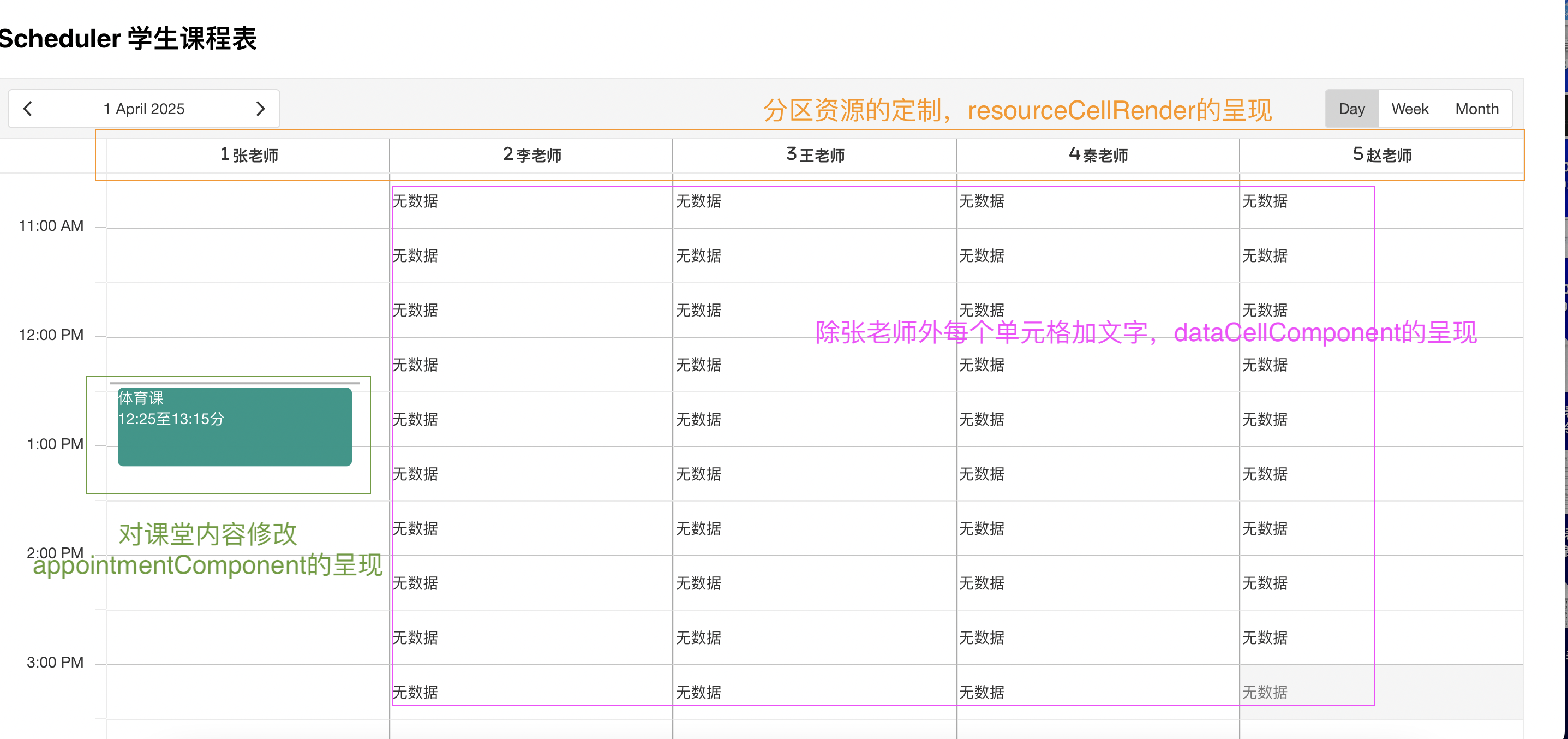
上一章,我们只能看到某天有什么课程,但是该课程所属于哪个老师,我们并不知晓,现在我们加上了分区属性,可以明显看到第一列名称,是老师名字,作为区分。
四.属性分析
resourceCellRender,appointmentComponent,dataCellComponent,
以上三个属性,接收的都是组件。
resourceCellRender
其组件props得到, "Resource"传的teachers的数组中object。
例如,本文中的
{"data": {"text": "张老师","id": 1,"icon": ""},"id": 1,"text": "张老师"
}
appointmentComponent
其组件props得到, 资源object。
例如,本文中的
{"data": {"appointmentData": {"text": "体育课","teacherID": 1,"startDate": "2025-04-01T04:25:00.000Z","endDate": "2025-04-01T05:15:00.000Z","id": "tdwZjPILO6dSI1eLck0u_"},"targetedAppointmentData": {"text": "体育课","teacherID": 1,"startDate": "2025-04-01T04:25:00.000Z","endDate": "2025-04-01T05:15:00.000Z","id": "tdwZjPILO6dSI1eLck0u_","displayStartDate": "2025-04-01T04:25:00.000Z","displayEndDate": "2025-04-01T05:15:00.000Z"}},"index": 0
}
dataCellComponent
其组件props得到
例如,本文中的
{"data": {"startDate": "2025-04-01T15:30:00.000Z","endDate": "2025-04-01T16:00:00.000Z","groups": {"teacherID": 1},"groupIndex": 0,"text": ""},"index": 29
}
提示:此处得到每个单元格text都是空字符串
五 那怎么样定制上的?
本章中主要根据组件中传回的属性props的数据的不同,来根据个人喜好,修改呈现样式的
总结
例如:以上就是今天要讲的内容,本文仅仅简单介绍了scheduler的分组resourceCellRender,appointmentComponent,dataCellComponent属性使用。下一章,editing,appointmentDragging属性,托拽联合使用的学习


全生态接入系统技术白皮书)


